
Coding agents have changed how we build software, but they’ve also created new risks. This post describes a response to the one that worries me most: an agent compromising the systems I have access to, or leaking sensitive information.
When I recently tested a project and found a connectivity issue, my coding agent went looking for the cause in a configuration file in my home directory:
grep -vE "key|secret|passphrase|token" ~/.config/context-switch/config.toml
With the -v flag, it tried to filter out lines that might contain secrets. Helpful. But can I rely on all the models I try out to be this careful every time? And can I guarantee that I even recognize it when credentials are leaked to some large language model provider? In other cases I’ve also seen sensitive values end up in tool output. I’d rather keep those files outside the agent’s reach in the first place. We shouldn’t rely on the model to be careful with every tool we give it.
“AI is software. It can be controlled.”
Arthur Mensch, CEO of Mistral AI, in Le Monde
I believe this, too, and I will show in this post how to control OpenCode by running it in a sandbox.
What can go wrong, and what we need
The model doesn’t read files or run commands on its own. The agent harness, the software around it, provides tools for this. Together, they form the coding agent. The harness enforces permission rules or asks for approvals before an action. Those are useful safeguards, but something wrong can easily slip through. I’ve watched an agent get denied the file-reading tool and then use sed in the shell to read the same ignored .env file. Sometimes the agent works in “auto” mode, freeing it from many of the controls.
The agent runs with user permissions and could gain access to Kubernetes clusters, GitHub organizations, PyPI accounts or other things for which credentials are locally available. Incidents with misbehaving agents also demonstrated realistic risks for reachable network targets that may be deemed secure behind a firewall.
An additional sandbox with clear configuration complements the harness and provides an extra layer of security.
These are the main requirements I would see for a good solution:
- Only selected files are visible: Only the code and other deliberately shared files should be accessible. Unrelated files, or even SSH keys, kubeconfigs, etc. should be out of reach.
.gitignorekeeps a file out of Git, but it is not enough to hide it from an agent effectively. - Credentials are usable without exposing their values: It should be possible to work with credentials in a project without exposing them to an agent.
- Network access is controlled: It should be possible to restrict network access to what is needed. Services in a company or home network for example may rely on a firewall, but often the developer machine is inside this firewall.
- The development workflow stays useful: Editing code, running tests, building containers, and inspecting a running app should work without a configuration nightmare.
- There’s an open-source exit path: To avoid vendor lock-in, I would strongly prefer an open source solution.
These requirements apply beyond a particular machine. The walkthrough below tests them on my laptop.
Choosing a sandbox
An ordinary OCI/docker container already provides useful filesystem and process isolation. Rootless operation, reduced capabilities, and syscall filtering can harden it further. But containers share the host kernel, and tasks like image builds need elevated privileges or complicated configuration, which wears down the isolation.
But there are solutions which go a step further and use a Virtual Machine (VM) as the sandbox, adding kernel separation and a stronger decoupling of the whole environment. I found Docker Sandboxes and Microsandbox as two promising options. Both run the agent in a so-called “microVM”, i.e. a lightweight VM tailored to the job. Both come with their own Linux kernel, and document host-controlled networking and credential injection.
Another interesting approach is from AWS, which released Strands Box as a developer preview on October 7th. It combines OS-level process containment with a policy engine that can consider earlier actions. For example, it would block outbound network requests or file access that seem harmful. But it currently supports only macOS and is in a very early development stage.
Here is a comparison of the two VM based solutions:
| Capability | Docker Sandboxes (sbx) | Microsandbox (msb) |
|---|---|---|
| Isolation | microVM | microVM |
| Files | Read-write/read-only mounts; private-clone or mountless modes | Read-write/read-only mounts; explicit mount list |
| Credentials | Host-side proxy substitutes credentials for approved destinations | Host-side proxy substitutes credentials for approved destinations |
| Network | Host-enforced egress rules and presets (Open, Balanced, Locked Down) | Host-enforced egress rules and presets (public, none, …) |
| Containers | Container engine inside the VM: Docker Engine built in | Container engine inside the VM: bring your own, e.g. Podman |
| OS support | Windows, macOS, Linux | Windows (preview), macOS, Linux |
| License | Proprietary | Apache-2.0 |
| Local use | Free today; Docker registration required | Free; no registration required |
The overall features are very comparable. Given my experience with a license change a few years back for Docker Desktop, I preferred to give the open source option a try.
Architecture and setup with Microsandbox
Architecture of the sandbox
With microsandbox, the setup consists of three main components:
- The microVM: Runs the coding agent (here OpenCode) and the development tools (e.g. Git, Podman, etc.) in an isolated environment.
- The host network stack: Controls network access and secret substitution.
- The workspace: The actual repository with project files and configuration.
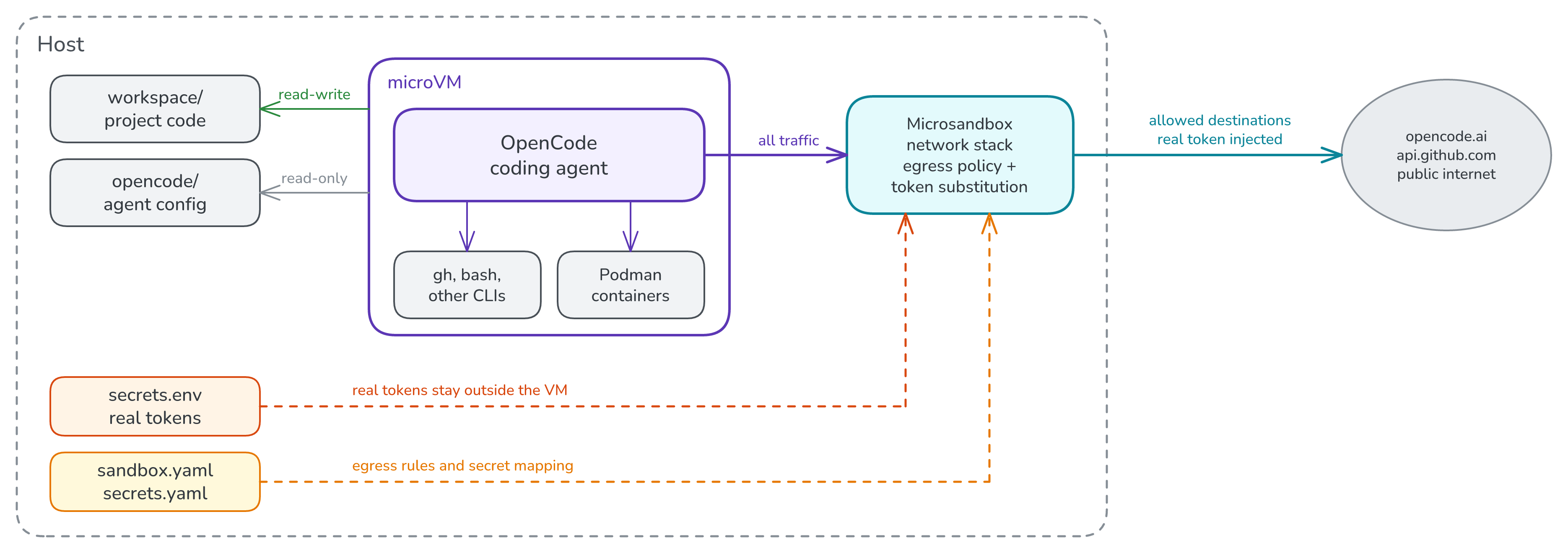
The microVM is the central element. It is a real virtual machine (on Linux, based on KVM). All necessary development tools are installed and run inside it. Hence it offers a strong process separation.
Files are not directly accessible from inside the VM. The necessary files are mounted from the host into the VM, either read-only or editable.
Network access is controlled by a network stack on the host. All network traffic from the VM passes through it and it does two jobs:
- The egress policy decides what the guest can reach at all. E.g. with
policy: publicthe public internet is allowed, while private networks, loopback, link-local addresses, and cloud metadata endpoints are blocked. - Secret substitution keeps real credentials out of the VM. Inside the VM, environment variables like
OPENCODE_API_KEYcan be provided with a placeholder value (e.g.$MSB_OPENCODE_API_KEY). When a request to an allowed host carries that placeholder in an allowed header, the proxy swaps in the real value. For this it intercepts TLS for HTTPS traffic.
Here is the binding for the model API key in secrets.yaml:
OPENCODE_API_KEY:
  value: "${OPENCODE_API_KEY}"   # read from the host environment at VM start
  allow: ["opencode.ai"]         # the only destination that gets the real value
  substitution:
    headers: true
    header_fields: ["authorization", "x-api-key"]
    query: false
    body: false
The workspace setup
To apply the microsandbox approach to the development environment of a software project, I would suggest a nested directory layout: An outer folder with the microsandbox configuration and all files that should not be visible to the agent, and an inner folder with the actual software project. Here is my working demo: chr1st1ank/blog-assets/code/microsandbox.
The general structure is as follows:
microsandbox/
│
├── sandbox.yaml          # VM settings: image, CPU/RAM, mounts, network policy, TLS
├── secrets.yaml          # Credential injection settings
├── secrets.env           # Real secret values (host-only)
│
├── toolchain/            # VM image and other config files
│   ├── Dockerfile
│   ├── containers.conf
│   └── .dockerignore
│
├── opencode/             # OpenCode settings (read-only mount)
│   ├── opencode.json
│   └── tui.json
│
└── workspace/            # Actual project directory
    │                     # will be mounted read-write at /workspace
    ├── Dockerfile
    ├── compose.yml
    ├── ...
    ├── pyproject.toml
    ├── hello_app/
    └── tests/
The most important parts of the setup are:
- The mounts: The project folder is mounted read-write at
/workspace, so it can be accessed from the host (e.g. from an IDE) and from inside the agent. The agent configuration is mounted read-only. These files are everything the agent can see. - The development image:
toolchain/Dockerfilebuilds the environment the agent runs in. The nice thing is that microsandbox can use a normal OCI/Docker image as VM base. Instead of a standard image, I built one with agent, language runtimes, Git, build/test tools, and a container engine. Note the distinction fromworkspace/Dockerfile, which builds the application itself. The image is built on the host, exported, and loaded withmsb load. - The VM configuration:
sandbox.yamldefines mounts, working directory, network policy, TLS inspection, and loopback-bound port forwarding;secrets.yamldefines the credential bindings, with values from the host environment or an untrackedsecrets.env. Both are passed with--confand--secret-confat VM creation.
A few issues in my specific test setup with OpenCode and Podman are worth noting:
- Running containers with Podman inside the VM needed a few workarounds, such as disabled cgroups and
slirp4netnsnetworking. These settings are intoolchain/containers.confandworkspace/compose.ymlin the demo setup for reference. - For OpenCode, I set
provider.opencode.envwhich makes it read its key from the environment, so no credential file exists in the VM. Anddisabled_providers: ["opencode-go"]hides duplicate model entries that otherwise lead to a confusing “subscription required” error.
I tested this setup with Microsandbox 0.7.8 and OpenCode 2.0.23 on Arch Linux, with KVM.
Developer experience in a microVM
Starting and using the VM
Setting up a first session takes three steps:
- Build the toolchain image and load it into microsandbox
- Create the VM with the necessary configuration and mounts
- Start the OpenCode agent inside the VM
These are the plain commands (in shortened form):
# 1. Once: build the toolchain image and load it into microsandbox
docker build --tag msb-poc-toolchain:local ./toolchain
docker image save --output toolchain.tar msb-poc-toolchain:local
msb load --input toolchain.tar --tag msb-poc-toolchain:local

# 2. Create the VM (secrets are read from the host environment at this point)
msb create --name msb-poc --conf sandbox.yaml --secret-conf secrets.yaml \
  --mount-owned /var/lib/containers:kind=disk,size=8G

# 3. Open OpenCode's terminal UI inside the VM
msb exec -t msb-poc -- opencode --standalone
These commands are long and easy to mistype, so it’s handy to package them as Taskfile tasks: task image:build, task image:load, task vm:create and task agent. A Taskfile can also load secrets.env into the environment before each command, which is how the real tokens reach the host-side proxy. The example repository contains the full Taskfile.yml.
Building the image takes a while the first time, but creating the VM and running commands in it is fast.
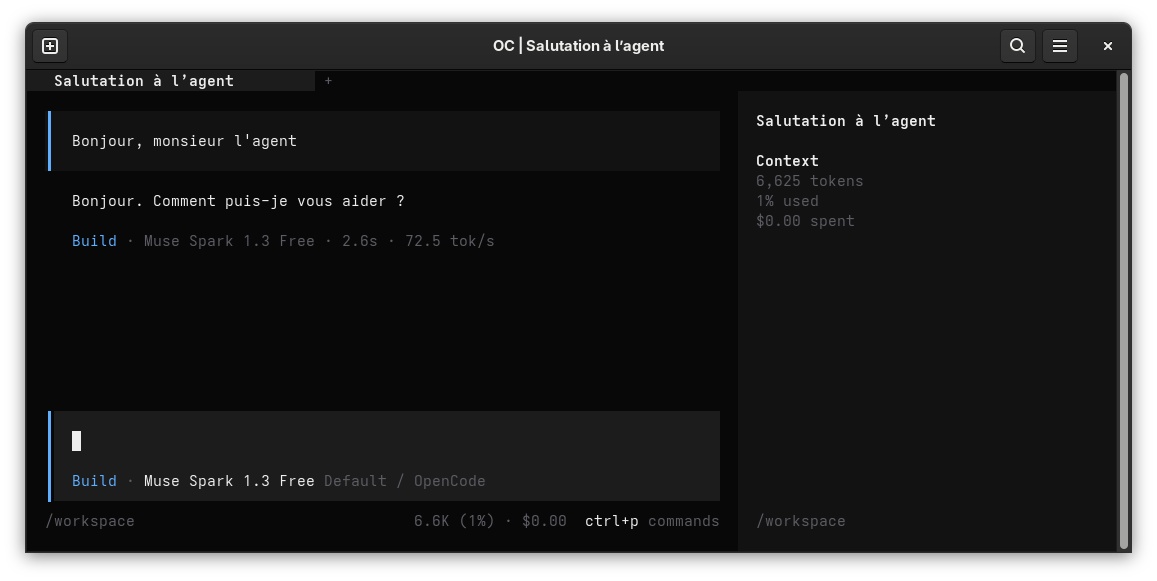
Working inside the VM follows the normal agentic coding workflow: I ask for a change, the agent edits files in workspace/, and I see the diff in my editor on the host, because it’s the same directory.
Tests or the app can be run inside the VM, too. Essentially instead of <command>, run msb exec -t msb-poc -- <command>.
For example, with msb exec -t msb-poc -- podman-compose --podman-build-args=--network=host -f compose.yml up --build -d the app builds and starts and I can reach it from the host as shown below via the laptop’s loopback interface:
host❯ msb status
NAME       IMAGE                      COMMAND    STATUS     PORTS
msb-poc    msb-poc-toolchain:local    "sh"       running    127.0.0.1:8000->8000/tcp

host❯ curl http://127.0.0.1:8000/
{"message":"Hello, world!"}
Credential injection
Credential injection is a feature which I find particularly useful. The output below is from a shell inside the VM, where the GitHub CLI is logged in. But its token shown in the output is only the placeholder starting with $MSB_GITHUB_:
host❯ task vm:shell
task: [vm:shell] msb exec -t 'msb-poc' -- sh

vm# env | grep TOKEN
GITHUB_TOKEN=$MSB_GITHUB_TOKEN
vm# gh auth status
github.com
  ✓ Logged in to github.com account chr1st1ank (GITHUB_TOKEN)
  - Active account: true
  - Git operations protocol: https
  - Token: $MSB_GITHUB_*****
gh only ever sees the placeholder, yet it connects successfully to GitHub. I could also confirm that by changing the token in the secrets file and seeing the effect in the VM.
The credential injection only works with HTTP, though. Non-http protocols like ssh or binary database protocols need different approaches.
Network isolation
The VM has no access to the host’s network interfaces, and can only reach the internet through the microsandbox firewall. For demonstration purposes, let’s query some websites.
After starting a shell in the VM, we can query an internal page which is reachable from the host machine, but not from the VM:
host❯ curl -ksI https://192.168.1.1 | head -n1
HTTP/2 200

host❯ task vm:shell
task: [vm:shell] msb exec -t 'msb-poc' -- sh

vm# curl https://192.168.1.1
curl: (7) Failed to connect to 192.168.1.1 port 443 after 0 ms: Couldn't connect to server
But an external website which is allowed according to my policies works:
vm# curl -sI https://ccc.de | head -1
HTTP/1.1 302 Moved Temporarily
A few rough edges
The sandbox setup works well enough for me. But there were a few issues I had to compromise on:
- Getting the allowlist right: I started off with the intention to allowlist exactly the necessary network hosts. This is possible, but it can be a bit cumbersome to get for example all the hosts for the model provider, tool calls, etc. right. I switched to
policy: public. If tighter egress control is needed, the allowlist is there, at the cost of maintaining it. - Disk space: The exported toolchain image alone is about 1.3 GiB, plus image caches on the host and container images in each VM. A “micro” VM is lightweight to boot, but the development environment inside isn’t small. It’s worth considering at least a cross-project base image to reduce duplication.
- No clipboard in OpenCode: There’s no way to copy from the TUI inside the VM to the host clipboard. Setting
"mouse": falsein OpenCode’stui.jsonat least restores normal text selection in the terminal. - Secrets are read at VM start: Rotating a token in
secrets.envtakes effect only after a restart. - Versioning the outer folder: The nested layout means the sandbox configuration lives outside the project’s git repository. Keeping it under version control needs a separate repository.
Summary
The microsandbox setup turns out to be pleasant to work with and provides a good balance between security and usability. Here is how the setup measures up against my requirements from the beginning:
| Requirement | Result |
|---|---|
| Only selected files are visible | The VM sees exactly what I mount: the workspace (read-write) and the agent configuration (read-only) |
| Credentials without exposure | For HTTP requests, only placeholders exposed to the VM; other protocols not supported |
| Network access is controlled | The LAN endpoints are unreachable; the public internet works under policy: public |
| The workflow stays useful | Editing, tests, Podman builds, and browser access to the running app worked smoothly |
| Open-source exit path | Apache-2.0 runtime, running entirely locally |
The main takeaways:
- A microVM controls which files the harness and all its subprocesses can reach, independent of the harness configuration and model flaws.
- With host-side substitution, the agent can use secrets without ever holding it.
- Microsandbox is a credible open-source option and the boilerplate is manageable.
The example used for testing is available as a folder in my blog-assets repository. Given that the necessary host tools (Microsandbox, Docker, Task, etc.) are installed, the setup is straightforward.
References
- Microsandbox: repository, secret handling, network defenses.
- Docker Sandboxes documentation.
- Introducing Strands Box, AWS Open Source Blog, October 2026.
- OpenCode configuration.
- Example code: chr1st1ank/blog-assets/code/microsandbox.